Windows 11 has sparked concerns among users about windows ai data collection, particularly regarding how it tracks coding agents and developer tools. Recent findings reveal that the operating system gathers data on tools like copilot.exe, claude.exe, and codex.exe, raising questions about privacy and data transparency. For small business owners, digital marketers, and freelancers, understanding these practices is crucial to maintaining control over their personal and professional data.
This article explores how Windows 11 collects data through components like MissionControlAggregator.dll and Windows Diagnostics. We’ll break down the process, from tracking developer tools to monitoring coding agents, and explain the implications for users. Whether you're a content creator or a developer, this guide will help you navigate the complexities of windows ai data collection.
You’ll also find practical steps to manage your privacy settings, adjust data collection preferences, and choose tools with transparent data policies. By the end of this article, you’ll have a clear understanding of how to protect your data while using Windows 11 effectively.
Understanding Windows 11 AI Data Collection
Windows 11 includes a feature that collects data on coding agents and developer tools used by users, raising questions about data privacy and transparency. This data is shared with Microsoft for diagnostics and system improvements, but many users are unaware of this process. Understanding how Windows 11 handles AI data collection is essential for those who want to manage their privacy settings effectively.
What Is Windows Diagnostics?
Windows Diagnostics is a built-in feature of Windows 11 that gathers information about system performance, user behavior, and application usage. This data helps Microsoft improve the operating system, identify bugs, and enhance user experience. However, it also includes details about the coding agents and developer tools users interact with, such as codex.exe, claude.exe, and copilot.exe. While this data is useful for system optimization, it raises concerns about how it is used and shared.
The Role of MissionControlAggregator.dll
MissionControlAggregator.dll plays a key role in collecting and reporting data about coding agents and developer tools. This system file tracks which tools are used and how frequently, storing this information locally before sending it to Windows Diagnostics. Unless users opt out of the optional diagnostic data (which is enabled by default), this information is uploaded to Microsoft. The presence of this DLL highlights the extent of data collection and the need for users to be aware of their privacy settings.
How Windows 11 Collects Data on Coding Agents
Windows 11 uses MissionControlAggregator.dll to track coding agents and developer tools, capturing details about which applications are used and how they interact with the system. This component is designed to monitor the activity of specific tools and collect data about their usage patterns, which is then reported to Microsoft.
Tracking Developer Tools
The tracking of developer tools is achieved through a combination of string comparisons and executable name checks. When a coding agent or developer tool is launched, the system compares the executable names against a predefined list embedded within MissionControlAggregator.dll. This process allows the system to identify and record which tools are being used, providing insights into user behavior and tool interactions.
What Tools Are Being Monitored?
Common coding agents tracked by Windows 11 include GitHub Copilot, Claude, and Codex. These tools are identified by their executable names, such as copilot.exe, claude.exe, and codex.exe, which are checked against the internal list within the DLL. Additionally, other developer tools like Python, .NET, and GCC are also monitored, highlighting the broad scope of data collection aimed at understanding software usage across the Windows ecosystem.
Managing Your Data Privacy Settings
Managing your data privacy settings in Windows 11 is essential for maintaining control over the information shared with Microsoft. While some data collection is necessary for system stability, you can minimize the amount of data sent by adjusting your privacy settings and opting out of diagnostic data collection.
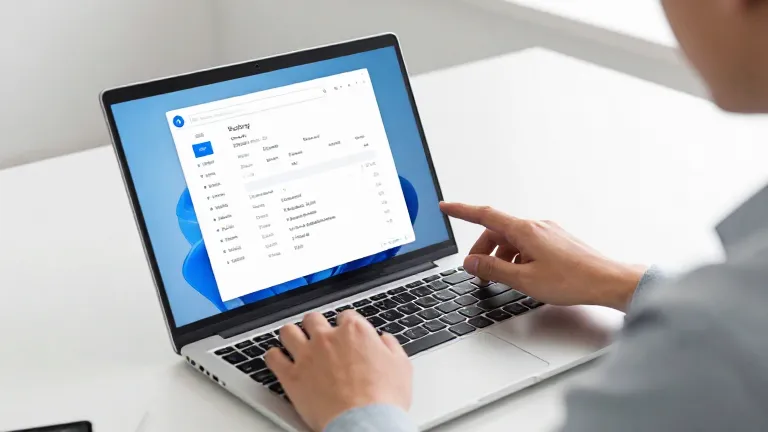
- Open the Settings app and navigate to Privacy > Diagnostics & Feedback.
- Select 'Basic' or 'No data' to opt out of diagnostic data collection.
- Adjust the 'Diagnostic data level' to control what information is shared.
- Review and modify privacy settings for specific apps and developers.
Opting Out of Diagnostic Data
Opting out of diagnostic data collection is a straightforward process that allows you to reduce the amount of information sent to Microsoft. In Windows 11, you can access this setting through the Settings app by navigating to Privacy > Diagnostics & Feedback. From there, you can select 'Basic' or 'No data' to limit the data shared. While this action reduces data transmission, it's important to note that some data collection is retained to ensure system stability and functionality.
Adjusting Privacy Settings for Developers
Adjusting privacy settings for developers allows you to manage which apps and tools can access your system data. This includes configuring permissions for coding agents and developer tools like GitHub, Codex, and Copilot. By reviewing these settings, you can ensure that only trusted applications have access to your system resources. This level of control helps protect your privacy and reduces the risk of unnecessary data exposure.
Best Practices for Data Control on Windows 11
To maintain control over your data on Windows 11, it's essential to adopt proactive measures that ensure your privacy is protected. Regularly reviewing and adjusting your settings, selecting tools that prioritize transparency, and staying updated on Microsoft's policies can significantly reduce the risk of unwanted data collection.
- Review your privacy settings in the Settings app under 'Privacy' to manage data collection for apps and system diagnostics.
- Use development tools and coding agents that provide clear information about their data practices and offer opt-out options for data sharing.
- Consider using third-party applications or tools that allow greater control over data collection and offer enhanced privacy features.
- Stay informed about changes in Microsoft's data policies by following official sources and community discussions on privacy topics.
Reviewing Privacy Settings
Regularly reviewing your privacy settings is a crucial step in managing data control on Windows 11. Navigate to the Settings app, then select 'Privacy' to access various options related to data collection. Here, you can adjust settings for diagnostics, app permissions, and activity history. It's recommended to check these settings periodically to ensure they align with your privacy preferences.
Choosing Tools with Transparent Data Policies
Choosing tools with transparent data policies helps you make informed decisions about your data. Look for developers who clearly state how they handle user data and provide options to opt out of data sharing. This transparency not only enhances trust but also gives you more control over your information. Tools like Visual Studio and other open-source editors often provide detailed privacy settings, allowing users to customize their data handling preferences.
The Impact of AI Data Collection on Users
The impact of AI data collection on users is a complex balance between enhanced functionality and privacy considerations. While data collection can lead to improved user experiences and more personalized tool recommendations, it also raises concerns about how user data is handled and shared. Understanding these trade-offs is essential for users who want to make informed decisions about their data privacy on Windows 11.

Benefits of AI Data Collection
AI data collection can significantly enhance user experiences by enabling more accurate tool recommendations and predictive features. For example, by tracking which coding agents and developer tools users frequently employ, Windows 11 can optimize performance and suggest relevant tools based on usage patterns. This can streamline workflows and improve productivity, particularly for developers and content creators who rely on a variety of software.
Privacy Concerns and User Awareness
Despite these benefits, privacy concerns remain a critical factor for users. Microsoft aims to balance data collection with user privacy by offering options to opt out of diagnostic data sharing. However, the default settings often include data uploads, which means users must actively adjust their privacy settings to control what information is shared. Awareness of these settings and their implications is crucial for maintaining control over personal data.
Frequently Asked Questions
How can I stop Windows 11 from collecting data on my coding tools?
To stop Windows 11 from collecting data on coding tools, go to Settings > Privacy > Diagnostics & feedback and select 'Basic' or 'Off'. This disables diagnostic data collection, including information about coding agents and developer tools.
What data does Windows 11 collect from developer tools?
Windows 11 collects data on which coding agents and developer tools are used, including their executable names. This information is stored locally and sent to Microsoft for diagnostics purposes, unless you opt out.
Is data collected by Windows 11 secure?
Microsoft claims that data collected by Windows 11 is encrypted and stored securely. However, the exact security measures and handling of data are not fully transparent, so users should remain cautious and review privacy settings.
Can I still use coding agents like GitHub Copilot if I opt out of data collection?
Yes, you can still use coding agents like GitHub Copilot even if you opt out of data collection. The opt-out affects diagnostic data sharing, but it does not disable the functionality of the tools themselves.
Taking Control of Your Data
Managing your data privacy settings is essential for maintaining control over your information. Review and adjust your settings to ensure your data is shared only as you wish.
To take action, start by opting out of diagnostic data collection and reviewing your privacy settings. This proactive approach helps protect your data while using Windows 11.