
Content creators are always looking for tools that can streamline their workflow and enhance their content. With the rise of AI, platforms like Suno are stepping up to meet this demand. Suno ai videos for music is now a reality, as the platform introduces a new feature called 'Visuals' that allows users to generate AI videos that sync with their AI music. This integration of music and video opens up exciting possibilities for creators looking to expand their content offerings. In this article, we'll explore how Suno’s Visuals feature works, how to use it effectively, and the practical applications of creating AI videos for music. Whether you're a digital marketer or a small business owner, this tool could be a game-changer for your creative projects.
Suno's Expansion Into AI Video Creation
Suno, the AI music platform, is expanding its capabilities by introducing a new feature called 'Visuals,' which allows users to generate AI videos that synchronize with their AI-generated music. This integration marks a significant step in Suno's evolution, offering content creators a more comprehensive toolset for multimedia production.
Suno's New Visuals Feature: Bridging Music and Video
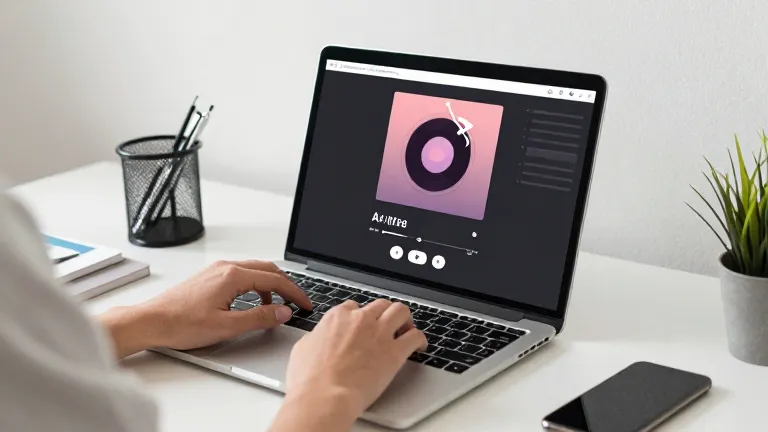
Suno's New Visuals Feature: Bridging Music and Video introduces a seamless way to combine music and video creation. The feature enables users to transform their AI-generated songs into video clips that automatically lipsync to the lyrics. This capability allows creators to produce cohesive multimedia content without needing separate tools for music and video production.
How AI Video Syncs With AI Music
How AI Video Syncs With AI Music is made possible through advanced synchronization technology that aligns visual elements with the audio track. Users can select specific sections of their track, up to 15 seconds, and pair them with reference images or prompts to generate synchronized videos. This ensures that the visual output matches the rhythm and timing of the music, enhancing the overall viewing experience.
How to Create AI Videos for Music with Suno
Creating AI videos for music with Suno is a straightforward process that allows users to synchronize visual content with their audio tracks. By selecting a section of their music and using reference images, creators can produce engaging video clips that enhance their audio content.
- Access the Visuals tab under Create mode on the web, iOS, or Android app.
- Select a section of your music up to 15 seconds long to use as the basis for the video.
- Choose a reference image from Suno's presets, upload your own photo or artwork, or generate one using descriptive prompts.
- Decide whether the reference image will be the start or end frame of the video to facilitate editing.
Step-by-Step Guide to Using Suno's AI Video Feature
To start, navigate to the Visuals tab in Suno's Create mode. On the web, this can be accessed via the three-dot menu on a song in your library. From there, select the section of the track you want to use for the video, up to a maximum of 15 seconds. This selection sets the foundation for your AI-generated video.
Customizing Your AI Video with Reference Images
Customizing your AI video involves selecting a reference image. Users can choose from Suno's original character presets, upload their own photo or artwork, or generate an image using descriptive prompts. The image generation capabilities also allow for specific aspect ratios, optimizing results for landscape or portrait modes and online platforms. This customization ensures the video aligns with the creator's vision and brand identity.
Practical Use Cases for Suno AI Videos
Suno's AI video feature opens up exciting opportunities for content creators to leverage synchronized audio-visual content across multiple platforms. By integrating AI-generated videos with music, creators can produce eye-catching material tailored for social media, promotional campaigns, and brand storytelling.
Enhancing Social Media Content With AI Videos
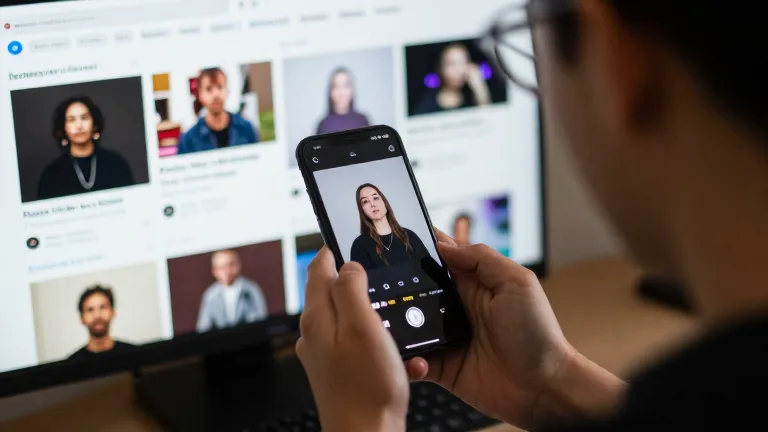
Content creators can use Suno's AI videos to enhance their social media presence by generating visually engaging clips that match their music. These videos can be used as short-form content for platforms like TikTok and YouTube, where dynamic visuals paired with music can capture attention quickly. Additionally, AI-generated thumbnails and album artwork created through the Visuals feature can improve the visual appeal of posts and music releases, making content more shareable and engaging.
Creating Music Promos and Branding Materials
For music promos and branding materials, Suno's AI video tool allows creators to craft professional-quality content that aligns with their brand identity. By syncing videos with music, creators can produce compelling promos that tell a story or convey a message effectively. These videos can be used in marketing campaigns, brand collaterals, or as part of a cohesive visual identity for music releases. The ability to customize visuals with reference images or prompts provides flexibility in creating unique and brand-consistent content that resonates with audiences.
Advantages and Limitations of Suno AI Video Creation
Suno's AI video creation tool presents a compelling blend of advantages and limitations for content creators. Its intuitive interface and rapid output make it a valuable asset, but the constraints on video length and image quality introduce challenges that users must navigate.
Benefits of Using Suno for AI Video Creation
One of the key benefits of Suno's AI video feature is its ease of use and the speed at which it generates results. Content creators can quickly transform AI-generated music into visually engaging clips without requiring advanced technical skills. The integration of the Visuals feature with Suno’s music creation tools simplifies the workflow, allowing users to focus on creativity rather than complex editing processes. Additionally, the ability to customize videos with reference images or descriptive prompts adds a layer of personalization, making the final output more aligned with the creator's vision.
Limitations and Potential Challenges
Despite these advantages, the 15-second video length restriction may limit the scope of creative expression. This limitation could be particularly challenging for content creators aiming to tell a more extended story or showcase detailed visual elements. Moreover, the quality of the generated videos is heavily dependent on the reference image and the accuracy of the descriptive prompts provided. While high-quality images and precise prompts can yield impressive results, inconsistencies or vague descriptions may lead to subpar outputs. These factors highlight the importance of careful planning and refinement when using Suno's AI video feature.
Getting Started With Suno's AI Video Tool
Getting started with Suno's AI video tool is straightforward, whether you're using the web, iOS, or Android platform. The Visuals feature is designed to integrate seamlessly into your workflow, allowing you to generate AI videos that sync with your music effortlessly.
- Access the Visuals tab under the Create mode on web, iOS, or Android.
- Select a specific section of your track, up to 15 seconds, from your music library.
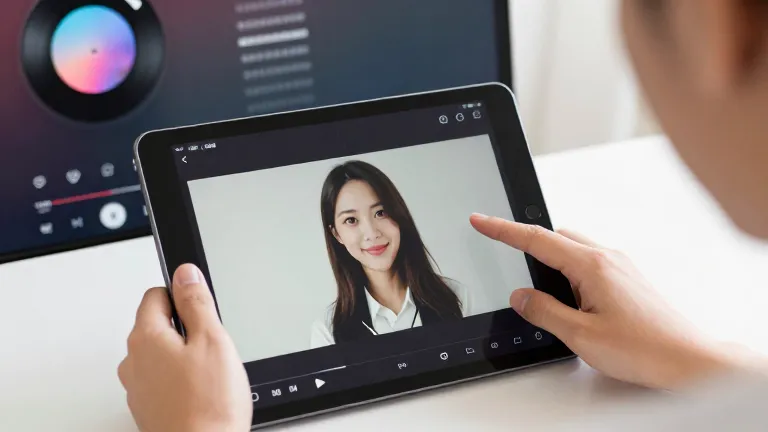
- Choose a reference image using one of Suno's presets, upload your own photo, or generate an image with a descriptive prompt.
- Generate the video clip, adjusting the start or end frame as needed.
Accessing the Visuals Feature on Different Platforms
To access the Visuals feature, navigate to the Create mode on the web, iOS, or Android app. On the web, you can find the Visuals tab directly, while mobile users will see it within the Create mode. Alternatively, on the web, you can access Visuals by selecting the three-dot menu on a song in your library. This menu provides quick access to the Visuals tool, making it easy to start creating videos without leaving your music library.
Generating Your First AI Video With Suno
Once you're in the Visuals tool, the process begins by selecting a specific section of your track. You can choose up to 15 seconds of music, ensuring the video aligns perfectly with your song. Next, select a reference image—either from Suno's presets, upload your own, or generate one using descriptive prompts. This step allows for customization, ensuring the video reflects your creative vision. Finally, generate the video clip, adjusting the start or end frame as needed to create a cohesive and engaging visual that syncs seamlessly with your music.
Frequently Asked Questions
Can I use Suno AI videos for commercial purposes?
Yes, Suno AI videos can be used for commercial purposes. However, users should review Suno's terms of service to understand any specific restrictions or licensing requirements.
How long can my AI video be with Suno?
Suno's AI video feature currently allows for the creation of 15-second videos that sync with AI-generated music. Longer videos may require additional tools or manual editing.
Is there a cost associated with using Suno's AI video feature?
Suno's AI video feature is available as part of its existing service. However, there may be additional costs for premium features or extended usage, which users should check on the Suno website.
Can I edit my AI video after it's generated?
Yes, users can edit their AI video after it's generated. They can adjust the reference image, select different frames, or use external editing tools for more advanced modifications.
Next Steps for Content Creators
Suno's AI video feature opens new possibilities for content creators by integrating music and video seamlessly. Whether for social media, promos, or branding, this tool offers a practical solution for generating engaging content.
To start, users should access the Visuals feature on their preferred platform and experiment with creating and customizing AI videos. This step-by-step approach ensures a smooth and creative workflow.